
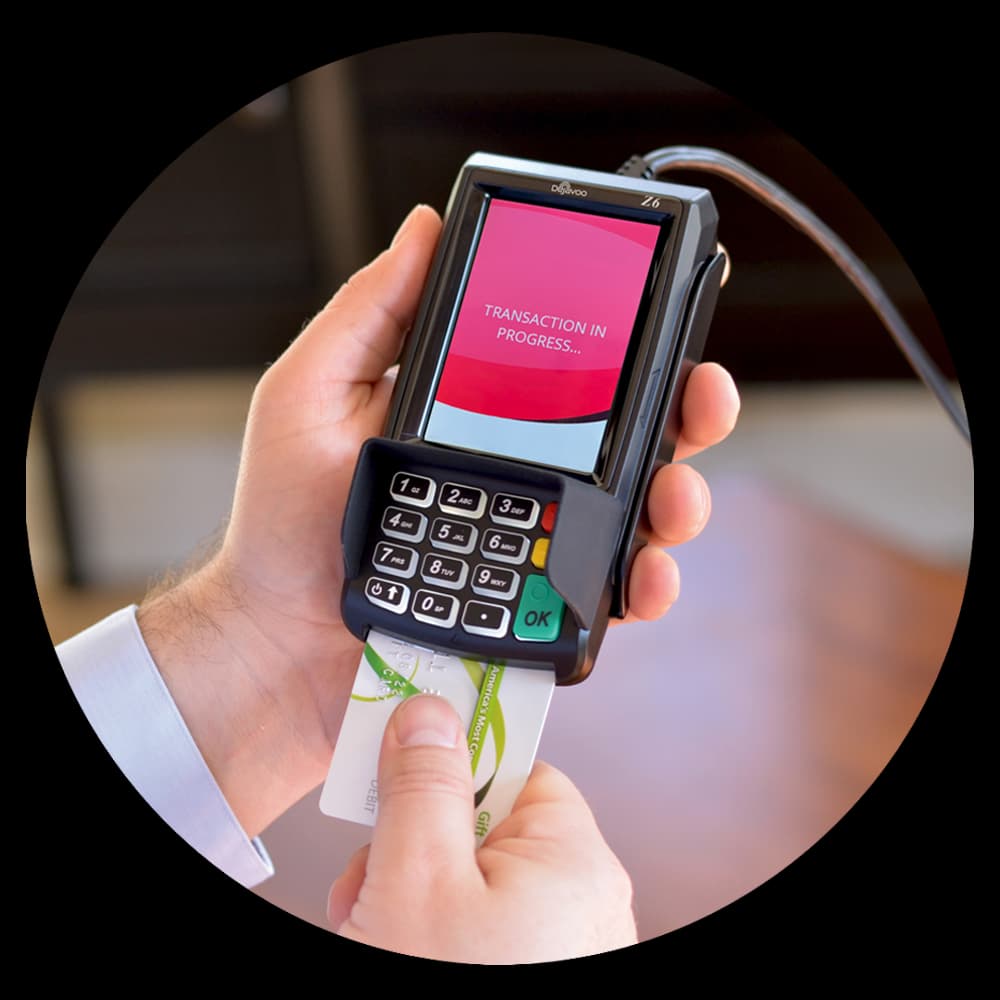
The Dejavoo Z6 is a compact, Linux-based countertop PIN pad built for merchants who want dependable chip, tap, and swipe acceptance with secure, encrypted PIN entry. Because it runs over a wired Ethernet connection, the Z6 setup is quick and rarely needs troubleshooting once the cable is in place. This quick start walks you through the whole flow, from first power-on to your first settled batch.
Before you begin, have two things ready: your merchant terminal ID (TID) and an Ethernet cable reaching your router or switch. With those on hand, work through the steps below in order and your Z6 will be live and ready for customers.
1Connect power and boot the Z6
- Begin your Dejavoo Z6 quick start by placing the compact countertop unit where staff can reach the keypad and customers can reach the PIN pad. The Z6 is a Linux-based entry terminal, so it powers from a single wall adapter — there is no charging base to manage.
- Plug the supplied power adapter into the terminal and a grounded outlet, then let the device boot fully to its home screen. The first boot can take a minute as the Linux platform initializes. Load a roll of thermal paper into the printer bay, feeding from the bottom past the cutter, before you go live.
2Connect Ethernet
- The Z6 is built for a wired connection, which keeps a busy counter fast and stable. Run an Ethernet cable from your router or switch into the LAN port on the back of the terminal. The device pulls an IP address automatically over DHCP — no manual configuration needed in most shops.
- Watch for the network icon on the home screen to confirm the Z6 is online. A solid connection is the foundation of the whole Dejavoo Z6 setup, so verify it now before you attempt to load parameters or run a test payment.
3Load parameters and activate
- With the Z6 online, download its parameters — the settings that bind the terminal to your merchant account and processor. Open the setup or download menu and start the parameter download. The terminal contacts the host, pulls your configuration, and reboots.
- After it restarts the Z6 is activated and ready to authorize live cards. If the download stalls, confirm the Ethernet link and your terminal ID (TID). Our Puerto Rico team can push parameters to the Z6 remotely if you get stuck at this stage.
4Run a test payment with PIN entry
- Before your first customer, ring up a small test sale to confirm the full flow works. Insert an EMV chip card and follow the prompts. For debit, the Z6 will request a PIN — the customer enters it on the encrypted PIN pad, and the digits never leave the secure hardware in the clear.
- Complete the authorization and confirm the receipt prints cleanly with the correct amount. Encrypted PIN entry is the reason the Z6 is trusted at the counter, so make sure the PIN prompt appears and accepts input as expected. Void the test right away so it does not settle.
5Test a contactless tap
- The Z6 accepts tap-to-pay alongside chip and swipe. Ring up another small test amount and hold a contactless card, phone, or watch over the reader until it beeps and confirms.
- Contactless is the fastest path through a line, so verify it works before opening. Between chip, tap, and magnetic swipe, confirm all three read methods complete a sale on your Dejavoo Z6, then void the test transaction.
6Reprint a receipt
- Customers often ask for a duplicate receipt after the sale. From the home screen, open the receipt or reprint menu and choose to reprint the last transaction, or search by amount to reprint an earlier one.
- Knowing where the reprint function lives before you need it saves time at a busy register. Keep a spare roll of thermal paper on hand so a reprint request never stalls the line.
7Settle your batch
- At the end of each business day, settle the batch to send the day's approved transactions to your processor for funding. On the Z6, open the batch or settlement menu and confirm the settle command. The terminal totals the batch and reports back a confirmation.
- Settling daily keeps your deposits on schedule and your reporting clean. Many merchants build this into the closing routine so the Dejavoo Z6 batch is never left open overnight.
8Troubleshooting
- If the Z6 will not come online, reseat the Ethernet cable at both ends and confirm the router port is live. A failed parameter download usually points to a TID mismatch or a dropped link — verify both and retry. A missing PIN prompt on a debit sale typically means activation did not finish, so re-run the parameter download.
- For printing problems, reopen the paper bay and reseat the roll so it feeds from the bottom. If anything still looks off, reach out — local support means you talk to a real person who knows Puerto Rico merchants, not an overseas queue.
Want the full spec sheet and pricing on this terminal? See the Dejavoo Z6 product page, or browse every Dejavoo support and manuals resource for your Puerto Rico business.