
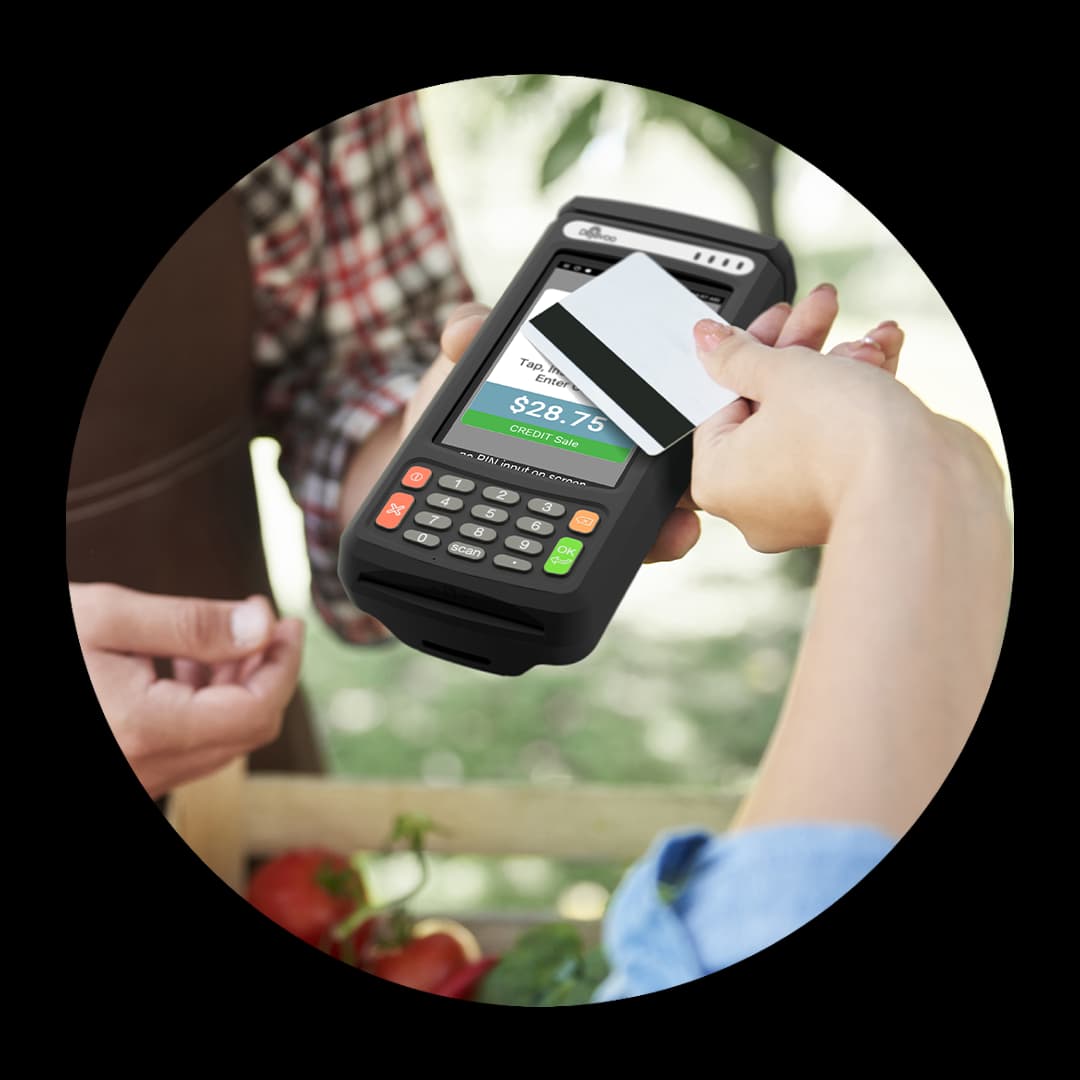
The Dejavoo QD1 is an entry-level Android smart terminal — a wireless handheld with a bright touchscreen, a built-in battery, and both Wi-Fi and 4G, so it takes payments on the counter or anywhere in the shop. This quick start reference walks you through the entire QD1 setup, from the first charge to settling your first day of sales. The flow is short, and once you know the order of the steps you can be live in minutes.
Before you begin, have three things ready: your Wi-Fi network name and password (or an activated 4G SIM), your merchant terminal ID (TID), and a roll of thermal receipt paper. With those on hand, work through the steps below in order and your QD1 will be ready for customers. Want the full spec sheet? See the Dejavoo QD1 product page.
1Charge and power on the QD1
- Start your Dejavoo QD1 quick start by unpacking the box and confirming everything arrived: the QD1 handheld, the USB-C charging cable and adapter, and a starter roll of thermal receipt paper. The QD1 is an entry-level Android smart terminal with a built-in battery, so give it a full charge before your first shift.
- Plug in the adapter and let the battery reach a healthy level, then hold the power button until the Dejavoo logo appears. Load the paper by opening the printer bay, dropping the roll in so it feeds from the bottom, and pulling a short tail past the cutter. Let the touchscreen finish booting to the home screen before you continue.
2Connect Wi-Fi or 4G
- The QD1 is a wireless terminal, so pick the connection that fits where you take payments. From the home screen, open the settings or gear menu and choose Wi-Fi. Select your network name, type the password exactly (it is case-sensitive), and wait for the signal icon to confirm the QD1 is online.
- If you move around the shop or work off-site, use the built-in 4G instead. With an activated SIM the QD1 connects to cellular data automatically, so it keeps processing without Wi-Fi. A steady connection is the foundation of the whole QD1 setup — confirm you are online before moving on.
3Activate and download your profile
- With the QD1 online, download its profile — the parameters that link the terminal to your merchant account and processor. Open the setup or download menu and start the parameter download; the QD1 contacts the host, pulls your configuration, and reboots itself.
- Once it restarts, the QD1 is activated and ready to accept live cards. If the download stalls or errors out, double-check your connection and your terminal ID (TID). Our Puerto Rico team can push a fresh profile to your QD1 remotely if you get stuck at this step.
4Run a test sale: chip, tap, swipe, or wallet
- Before your first customer, run a small test sale to confirm the QD1 reads every payment method. Ring up a low amount, then insert a chip card into the EMV slot, tap a contactless card or phone against the screen, and swipe a magnetic-stripe card through the reader.
- The QD1 also accepts digital wallets like Apple Pay and Google Pay through the same contactless tap, so try one to be sure. Void or refund the test right away so it does not settle. A clean sale across chip, tap, swipe, and wallet is the checkpoint that your Dejavoo QD1 quick start worked.
5Email or print a receipt
- The QD1 gives customers a choice at the end of each sale. To hand over a paper copy, leave printing enabled and the built-in thermal printer produces a receipt as the transaction finishes.
- For a paperless option, choose the email prompt and enter the customer's address on the touchscreen — handy for on-the-go sales where you would rather not carry extra paper. You can offer both, and set your business name, address, and phone in the receipt header so every copy looks professional.
6Settle and batch out
- At the end of each business day, settle the QD1 so your captured sales fund to your bank. From the main menu open the settlement or batch option and confirm the batch total matches the day's takings.
- The QD1 sends the batch to your processor and prints a settlement report you can keep for your records. Batching out daily is what moves money from captured to deposited, so make it the last step of your closing routine.
7Troubleshooting common issues
- If the QD1 will not connect, restart your router and re-enter the Wi-Fi password, watching for a mistyped character, or switch to 4G to confirm the terminal itself is fine. If a profile download fails, verify the TID and retry on a stronger signal. Declined test cards usually mean activation did not finish — re-run the parameter download.
- A battery that drains fast often means the QD1 was never fully charged before its first use, so top it up overnight. For printing problems, reopen the paper bay and reseat the roll so it feeds from the bottom. If anything still looks off, reach out — local support means you talk to a real person who knows Puerto Rico merchants.
Need the full manuals, spec sheets, or help with another model? Visit our Dejavoo support and manuals hub, or explore the Dejavoo QD1 in detail.