
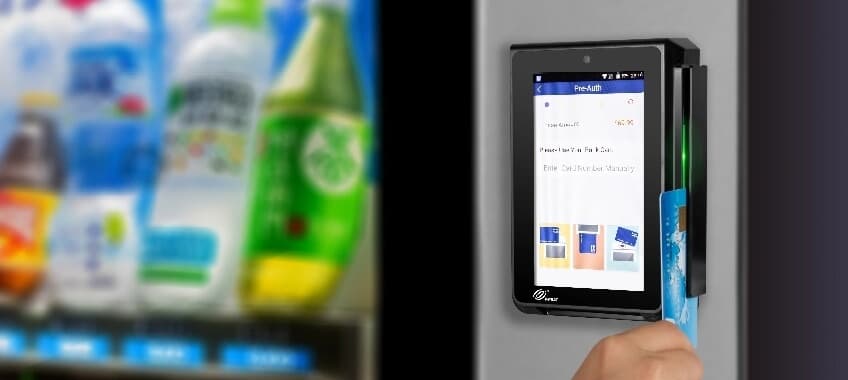
The PAX IM30 is a rugged, Android-based unattended terminal that builds card acceptance directly into vending machines, EV chargers, parking, and self-service kiosks. It has no printer or battery — it runs off the host machine — so setup is really an install, and this reference breaks it into seven simple steps. Follow them in order and your machine will be taking payments the same day. Our PAX IM30 terminal is supported by a Caribbean Payments team based right here in Puerto Rico, so help is only a call away.
1.Unbox and plan the install
- Confirm your kit includes the PAX IM30 module, the mounting bezel and gasket, the wiring harness, and any MDB or RS232 cables for your machine type. Because the IM30 has no printer or battery, everything runs off the host machine — so plan where the module face, cameras, and card slot will sit on the machine fascia.
- Choose a mounting spot that keeps the 5-inch display and QR cameras at a comfortable customer height and protects the IP65 seal. Cut or use the existing fascia opening, and dry-fit the module before you commit any screws.
2.Mount the module into the machine
- Seat the PAX IM30 into the fascia opening with its gasket in place so the IK08 vandal-resistant glass sits flush and the IP65 seal is unbroken — this is what keeps rain and dust out on outdoor vending, EV, and parking installs.
- Secure the module with the supplied bracket and fasteners from inside the machine, then confirm the card slot, contactless zone, and cameras are all unobstructed by the enclosure. A clean, sealed mount now prevents water intrusion and vandalism later.
3.Wire power, Ethernet, and MDB
- Connect the IM30 to the machine's regulated power feed using the supplied harness — never an unfused source. For vending, plug the MDB cable into the machine controller and set the IM30 as master or slave to match your setup; for kiosks or EV units, use RS232 or USB to the host board as specified.
- For the most reliable uptime, run an Ethernet cable to the module. If a wired drop is not available, you can rely on dual-band Wi-Fi or the 4G option instead — but confirm the cable routing is strain-relieved and clear of moving machine parts before closing the enclosure.
4.Power on and confirm connectivity
- Restore power to the machine and let the PAX IM30 boot into PayDroid. On the setup screen choose your connection — Ethernet, Wi-Fi, or 4G — and enter Wi-Fi credentials if needed, then wait for the status to show Connected.
- For sites spread across Puerto Rico, a 4G SIM keeps unattended machines online where no network drop exists. Ask our team to provision data so a remote vending route, EV charger, or parking terminal stays reachable without local Wi-Fi.
5.Pair the payment application
- Open the payment application on the IM30. On first launch it asks for an activation or terminal ID code tied to your merchant account — enter the exact code from your Caribbean Payments welcome details to pair the module to your account.
- The app then downloads your merchant profile, pricing, and SRED encryption keys, and may run a quick update or restart. Let it finish; this one-time pairing links every unattended sale from this machine to your business correctly.
6.Run a test transaction
- Before the machine goes live, prove the whole path works. In the payment app trigger a small sale — tap a contactless card or mobile wallet against the reader, insert a chip card, or scan a QR code with the onboard camera — for a nominal amount you control.
- Wait for the Approved message, then void the transaction from the Transactions or History menu. A clean approval and reversal confirms the reader, your MDB or host link, the network, and your merchant account are all communicating before real customers use the machine.
7.Set up remote monitoring
- Because the IM30 is unattended, remote visibility matters most. Confirm the terminal reports into your management portal so you can watch sales, connection status, and software health across every machine without a site visit.
- Enable remote updates and alerts, then note the module ID against its machine location. If a terminal drops offline or a batch looks off, our local Puerto Rico support team can push a fix or walk you through it by phone — no drive to the site required.
Comparing devices before you commit? Browse our full range of card terminals to find the right unattended, handheld, or countertop fit for your business in Puerto Rico.