
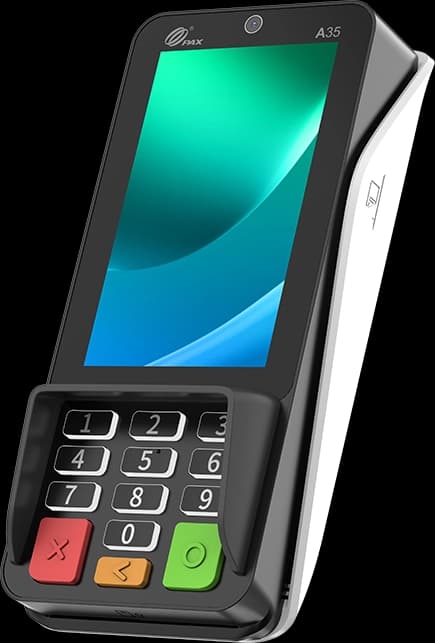
The PAX A35 is an Android multi-lane PIN pad that connects to your electronic cash register or POS and accepts chip, tap, contactless, and QR payments at each checkout lane. It is a powered device — no battery and no printer — so setup centers on cabling and pairing rather than charging or paper. This reference breaks the process into seven simple steps. Follow them in order and each lane will be taking payments the same day. Our PAX A35 PIN pad is supported by a Caribbean Payments team based right here in Puerto Rico, so help is only a call away.
1.Connect the PAX A35 to power and network
- Confirm the box holds the PAX A35 PIN pad and its Ethernet cable. Because the A35 is a powered lane device with no battery, it needs a steady connection to run — plan to mount or sit it where the shopper can reach it at each register.
- The simplest install uses Power-over-Ethernet: run one Ethernet cable from a PoE switch or injector into the A35 and it draws both power and data through that single line. If you are not using PoE, connect Ethernet for data and attach the supplied power adapter, or join the A35 to your Wi-Fi on 2.4 or 5 GHz.
2.Power on and confirm the connection
- Once cabled, the PAX A35 boots automatically; if it does not, hold the power button on the edge until the PAX logo appears and the home screen loads. Give it a moment to reach the desktop.
- Open Settings and check the network status. A PoE or wired link should show Connected right away; for Wi-Fi, choose your business network, enter the password, and wait for Connected. A green, steady connection is what every lane needs before it can talk to your POS.
3.Pair the A35 with your ECR or POS
- The PAX A35 works as the customer-facing PIN pad for your electronic cash register or point-of-sale system, so the two must be introduced. In your POS peripheral or payment settings, add a new pin pad and select the A35, then confirm its IP address or Bluetooth ID matches the device on the counter.
- Save the pairing and send a small test total from the register. When the amount appears on the A35 screen, the register and PIN pad are talking correctly and totals will flow to the device for every future sale.
4.Activate the payment application
- With the A35 online and paired, open the payment application from the home screen. On first launch it asks for an activation or terminal ID code tied to your merchant account — enter the exact code from your Caribbean Payments welcome details.
- The app then downloads your merchant profile, encryption keys, and lane settings, and may prompt for a quick update or restart. Let it finish; this one-time step links every transaction at that lane to your business correctly.
5.Accept a card and take a PIN
- Ring an item on the register and the total appears on the A35. Ask the shopper to insert the chip into the slot, swipe the magstripe, or simply follow the on-screen prompt. For debit, the A35 displays a secure PIN screen where the customer keys their PIN on the tactile physical keypad.
- The keypad gives shoppers a reliable, tactile press for PIN entry, while the Gorilla Glass touchscreen handles confirmations and tip or cash-back prompts. The A35 encrypts the PIN to the latest PCI 6 standard, so cardholder data never sits exposed at the lane.
6.Take contactless taps and QR payments
- For a faster line, invite the shopper to tap. Hold a contactless card, phone, or watch near the top of the A35 screen and the tap clears in a moment, including Apple Pay and Google Pay wallets.
- To accept a QR payment or add a loyalty scan, choose the QR option in the payment app and let the front-facing camera read the customer's code. Tap, wallet, or QR — the A35 keeps each lane moving without slowing your cashiers down.
7.Troubleshooting quick fixes
- If the A35 shows offline, re-seat the Ethernet cable and confirm the PoE switch or injector has power; a dark screen at a lane is almost always the cable or the port. For a Wi-Fi setup, re-check the network in Settings.
- If a total does not reach the A35, reopen the pin pad pairing in your POS and confirm the IP or Bluetooth ID still matches. Install updates when prompted and restart the device weekly. If a lane will not activate or the app looks stuck, our local Puerto Rico support team can walk you through it by phone — you are never on your own.
Comparing devices before you commit? Browse our full range of card terminals to find the right lane PIN pad or countertop fit for your business in Puerto Rico.