
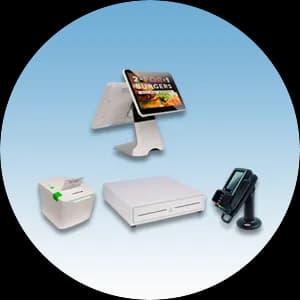
HIO POS is an Android-based point-of-sale system built for retail shops and restaurants, with a product catalog, table management, and built-in reporting all in one terminal. Getting it running is straightforward, and this quick start breaks the process into nine simple steps. Follow them in order and you will be ringing up sales the same day your device arrives. If you get stuck at any point, our HIO POS team is based right here in Puerto Rico and happy to help.
1.Power on and connect to Wi-Fi
- Set the HIO POS terminal on a flat surface near a power outlet and hold the power button until the Android home screen appears. Give it a moment to finish booting the first time.
- Open Settings, tap Wi-Fi, choose your business network, and enter the password. A steady connection keeps your catalog, sales, and reports syncing to the cloud, so wait until the network shows Connected before moving on.
2.Sign in and activate the HIO POS app
- Launch the HIO POS app from the home screen. On first run it asks for the activation details tied to your merchant account — enter the store code or email and password Caribbean Payments provided during setup.
- The app downloads your store profile, tax rules, and payment settings. Let it finish syncing and, if prompted, install any pending updates so every terminal in your store runs the same menu and pricing.
3.Build your product catalog and categories
- Go to the Products or Catalog section and create categories first — for example Food, Drinks, or Retail — so your sales screen stays organized. Then add each item with a name, price, and category.
- For items that come in variations, such as sizes or flavors, add modifiers or variants so staff can ring them up in one tap. You can add a photo to each product to make the register faster and reduce mistakes during a busy rush.
4.Set taxes and payment methods
- Open Settings and confirm your tax rate — in Puerto Rico that means configuring the IVU so it applies correctly at checkout. You can set a store-wide rate or assign different rates to specific categories.
- Next, enable the payment methods you accept: card, cash, and contactless. HIO POS pairs with your Caribbean Payments card reader, so confirm the reader is connected and take a moment to define any discounts or tip prompts you want to offer.
5.Configure tables or quick-sale mode
- Restaurants can switch on table service and lay out the dining room — add tables by section so servers can open a tab, add items course by course, and split or merge checks as guests come and go.
- Retail shops and counters are better served by quick-sale mode, where staff tap products straight into the cart and cash out in seconds. Choose the mode that matches how you sell; you can change it later as your business grows.
6.Run a test sale and take payment
- Before you open, ring up a real transaction end to end. Add a low-priced item to the cart, tap Charge, and run a card you control — tap, dip, or swipe on your Caribbean Payments reader.
- Approve the sale, then void or refund it from the transaction history. A clean approval and reversal confirms your catalog, tax, reader, and merchant account are all working together.
7.Print a receipt
- Load a paper roll into the receipt printer so it feeds from underneath, then pull a short tail out and close the lid. In Settings, pair the printer over Bluetooth or the network and send a test print.
- At checkout, HIO POS lets the customer choose a printed or emailed receipt. Offering both keeps the line moving and gives shoppers a record of every purchase.
8.View sales reports and close the day
- At the end of a shift, open the Reports section to see totals by product, category, payment type, and hour. These numbers help you track your best sellers, staff performance, and busy periods.
- Run the end-of-day or Z report to close out the register, reconcile cash, and confirm card batches settled. Closing the day cleanly keeps your books accurate and your deposits on schedule.
9.Tips and troubleshooting
- If the terminal drops offline, re-check Wi-Fi in Settings and confirm the network is reachable. If a card will not read, restart the reader and make sure it is paired and charged — most declines come from the issuing bank, not the device.
- Keep HIO POS updated, charge the terminal overnight, and restart it weekly for smooth performance. If anything looks off, our local Puerto Rico support team can walk you through it by phone.
Running a full-service dining room? See our restaurant POS options to compare table service, kitchen tickets, and features built for busy kitchens across Puerto Rico.