
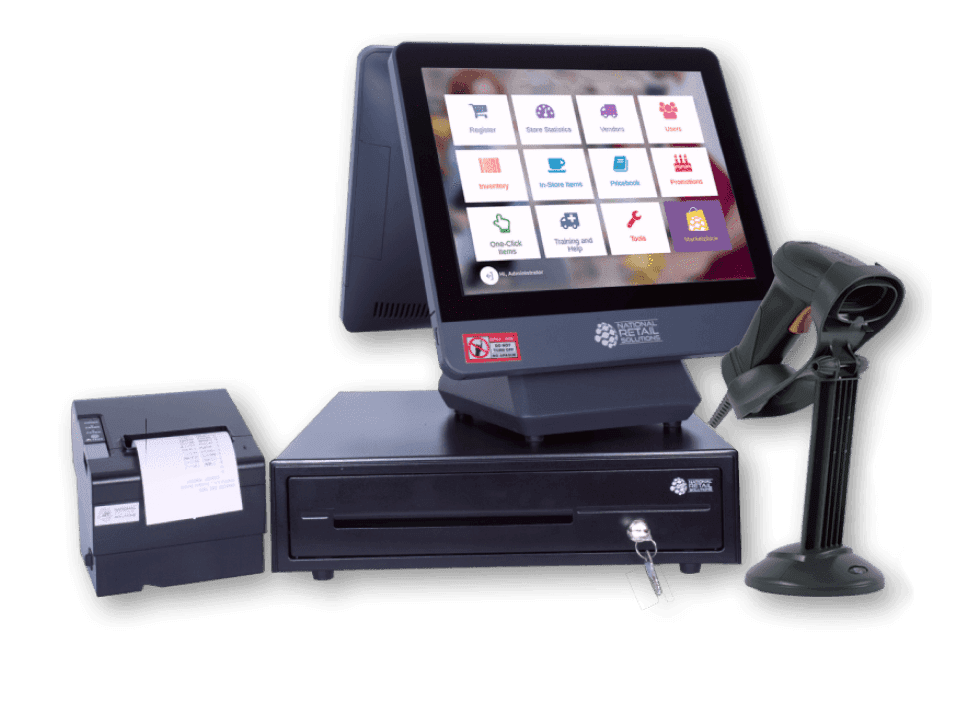
The NRS POS is an all-in-one countertop register built for convenience stores, colmados, and bodegas — a 15-inch touchscreen, a customer-facing display, a metal cash drawer, a scanner, and a receipt printer, with EBT acceptance, age-verification, and inventory built in. Getting it running is straightforward, and this reference breaks the process into seven simple steps. Follow them in order and you will be ringing up sales the same day your station arrives. Our NRS POS system is supported by a Caribbean Payments team based right here in Puerto Rico, so help is only a call away.
1.Assemble and power on the NRS POS
- Confirm your station includes the 15-inch merchant touchscreen, the customer-facing display, the metal cash drawer, the barcode scanner, the thermal receipt printer, and the EMV card reader. Set the register on a sturdy countertop near a power outlet with room for the drawer to open.
- Connect the cash drawer to the printer, plug in the scanner and card reader, and seat a roll of thermal paper in the printer so it feeds from underneath. Then power on the touchscreen and wait for the NRS home screen to load on both the merchant and customer displays.
2.Connect the register to the internet
- From the home screen, open Settings and choose your connection. Tap Wi-Fi, select your store network, enter the password, and wait for the status to show Connected — a wired Ethernet connection also works if your counter has a jack nearby.
- A steady connection keeps cloud auto-updates, EBT authorization, and the back-office mobile app in sync. If your colmado's signal is weak at the counter, ask our team about the best placement or a hardwired option so the register never drops offline mid-sale.
3.Activate your merchant account
- With the register online, open the NRS application. On first launch it will ask for the activation or merchant ID tied to your account — enter the exact code from your Caribbean Payments welcome details to link the register to your store.
- The system then downloads your store profile, tax settings, and NRS Pay processing keys, and may prompt for a quick update or restart. Let it finish; this one-time step connects every future sale, EBT transaction, and report to your business correctly.
4.Load your price book and inventory
- Build your price book so items ring up by barcode. Scan a product, enter its name and price, and set the quantity on hand — the NRS POS remembers it for next time and starts tracking stock automatically as you sell.
- Turn on low-stock alerts for your fast movers so you know when to reorder, and group items into departments for cleaner reporting. Loading your top sellers first gets you scanning quickly; you can fill in the rest of the shelf over the following days.
5.Turn on age-verification and EBT
- For a c-store, colmado, or smoke shop, enable the automatic ID-scan prompts on tobacco, alcohol, and lottery items so the register reminds staff to check age on every restricted sale — key for staying compliant and capturing tobacco scan-data rebates.
- Confirm EBT/SNAP and eWIC acceptance are switched on so shoppers can pay with benefits right at the counter. Our team makes sure your flat-rate EBT and NRS Pay processing are configured before you open the drawer to real customers.
6.Run a test sale and print a receipt
- Before going live, prove the whole path works. Scan an item, add it to the sale, and take a payment on a card you control — insert the chip, tap for contactless, or swipe — then confirm the total shows on the customer-facing display.
- Wait for the Approved message, print the thermal receipt, and then void the transaction from the Transactions or History menu. A clean approval and reversal confirms the reader, the printer, the cash drawer, and your NRS Pay account are all working together.
7.Set up the back-office app and go live
- Install the NRS back-office mobile app on your phone and sign in with your merchant credentials. From there you can watch sales in real time, review reports, and keep an eye on more than one store remotely — handy when you step away from the counter.
- Once your price book is loaded, compliance and EBT are on, and your test sale checks out, you are ready to open. If a scan will not register, a batch looks off, or you need a hand with settings, our local Puerto Rico support team can walk you through it — you are never on your own.
Weighing the right setup for your store? Explore our full range of payment solutions to find the register and processing fit for your business in Puerto Rico.